
Blur Face in Video in 10 Effective Ways
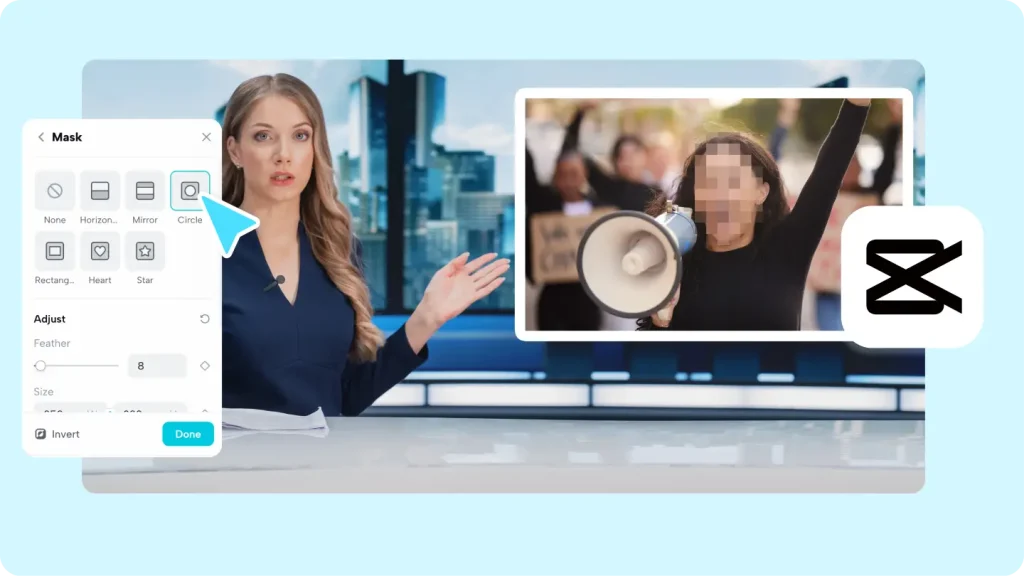
Blur Face in Video whether you’re a digital marketer, a professional storyteller, or an influencer, mastering video privacy is now a must-have skill. In this guide, discover step-by-step techniques using 10 diverse tools for effective face-blurring effects.
Why use the Blur Face in Video effect
Blurring faces in videos is like giving a virtual makeover to shield the real identities of individuals captured on your camera. This practice serves multifaceted purposes in the realm of video production.
How to Blur Face in Video on a desktop
You should find some desktop apps to blur faces in videos, especially when you create videos constantly and need to blur the faces in videos to protect privacy or for creative purposes. Below are some of the best desktop apps available for MacOS and Windows.
1. CapCut desktop video editor(MacOS and Windows)
CapCut desktop editor is an intuitive platform with various user-friendly features for video editing. To use the blur effect in the CapCut desktop editor, follow the below steps.
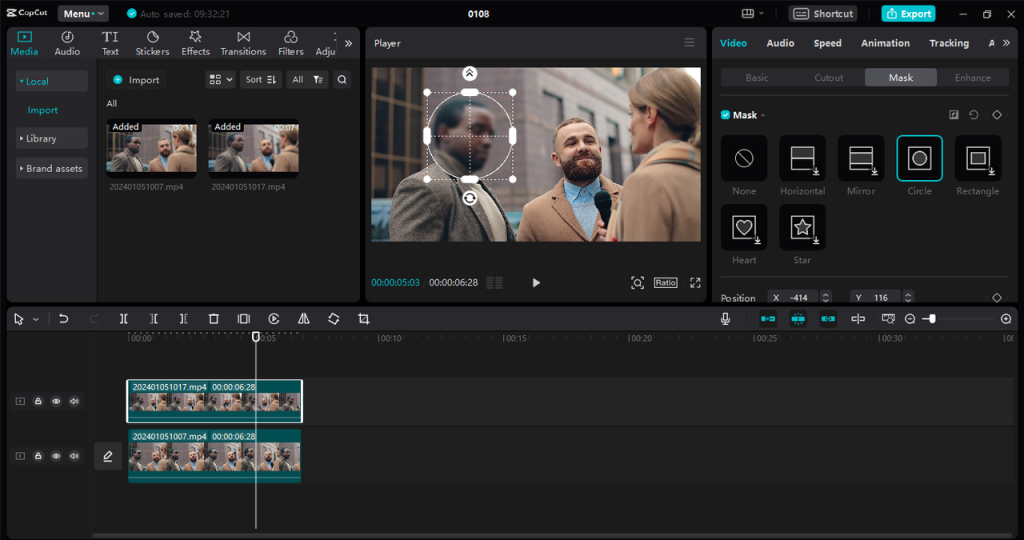
- Launch CapCut and import your video. Drag it onto the timeline. Then, find the “Effects” on the top left side and choose the “Blur” effect. Once done with the blur effect, export the blur video.
- Next, import the exported blur video and place it on the original video. Click on the “Mask” tab and select a shape (e.g., circle, rectangle).
2. Adobe Premiere Pro (MacOS and Windows)
This sophisticated video editing program, Adobe Premiere Pro, works with Windows and MacOS. It is widely used for its advanced features that cater to the needs of moviemakers, video editors, and content creators. By following the listed steps below, you can blur a face in Premiere Pro:
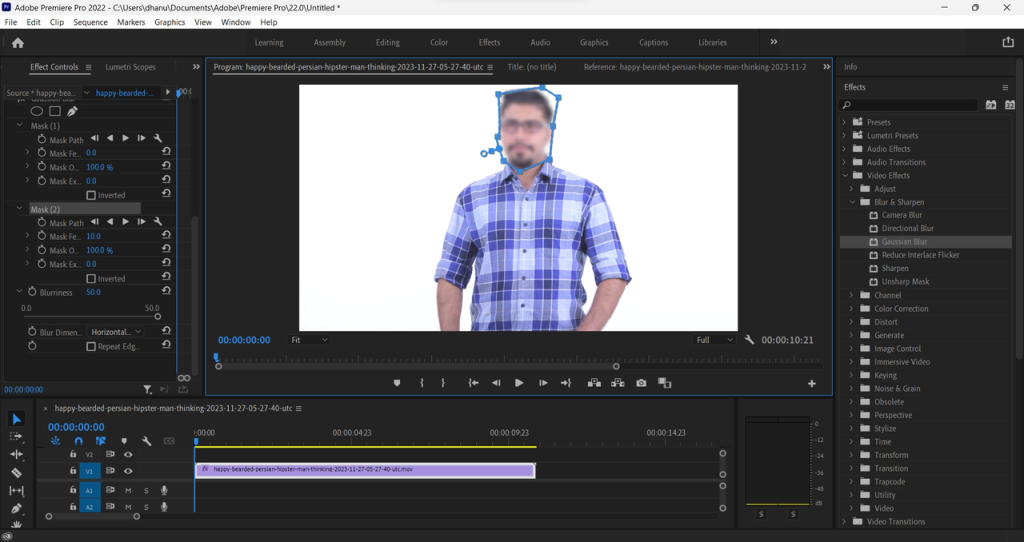
- Start by bringing in the footage you want to edit.
- Apply a blur effect by going to “Effects,” then “Video Effects,” and lastly, “Blur & Sharpen,” and choose “Gaussian Blur.” Drag the “Gaussian Blur” effect onto your footage.
3. MiniTool MovieMaker(MacOS and Windows)
MiniTool MovieMaker is a user-friendly free video editor that facilitates simple video editing tasks on Windows PCs. The Blur effect is one of the notable features that adds quality to your videos. You can use it to protect identities, highlight focal points, or create a cinematic ambiance.
- Upload your video into the editor.
- First, navigate to the “Elements” tab and select “Basic.” Then, choose the “Mosaic effect” and adjust to your requirements. Plus, make the relevant edits required.
4. iMovie (macOS)
iMovie is a native tool from Apple that is only accessible to macOS users. It has many features for editing videos, and it also allows you to blur individual frames easily. Here’s how you blur a face in the iMovie desktop app.
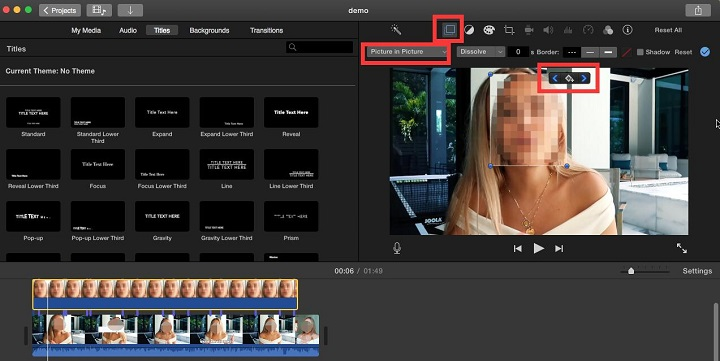
- Begin by creating a project in iMovie. Navigate to “Preferences” in the main menu, locate “General,” and click “Show Advanced Tools” to enable advanced features.
How do you Blur Face in Video online
CapCut online video editor can always be your go-to tool for easy video editing. With various blurring effects, you can protect privacy or add a stylish touch to your videos. For instance, you can blur a face in a surprise proposal video to keep it under wraps until the big reveal.
- Blur and edit
- After you upload the video to the CapCut online video editor using one of the methods above, you will see it in the “Media” area, also shown on the big canvas below.
- Click on the “Effects” tab on the left panel to see “Video effects” near the CapCut logo on the top left side. Select the “Blur” effect, and you can see the whole video becomes blurry.
- Then click the “Export” button and hit “Download” to download the video.
Finally, after all your adjustments and edits, you can click the “Export” button to share it as a link for review, as a presentation, or download your video. You can share the video you have edited on various social media platforms, such as Facebook, TikTok, YouTube, etc.
6. Flixier
The blur effect in Flixier is beneficial when hiding undesirable parts of your footage. Flixier’s blur and pixelate effects can obscure sensitive information, blur out a license plate, or cover someone’s face. Follow the following steps to add blur effect to your video:
- Access the “Library” menu, click “Shapes,” then choose “Square Mask” from the dropdown menu. This will apply the mask to both the timeline and video canvas.
7. Kapwing
Kawpwing is an advanced and powerful online video editing tool. This tool provides an easy-to-use blur effect on videos. Kapwing can blur out an entire video with just a few clicks.
- To upload videos to Kapwing, you can upload them directly from your device. Also, there are other options available, such as using URLs, uploading from Google Drive, and scanning the QR code to upload files from your phone directly.
How to Blur Face in Video on mobile
You must have also wondered how to blur faces in your videos with your mobile. Well, indeed, a few mobile apps can help blur faces in videos; and we’ve listed the best ones below.
8. CapCut mobile video editor Blur Face in Video
- Upload and add overlay
- To begin, start with a “New project” in the CapCut mobile app. Then, upload the video if you want to add the blur effect. Once it is uploaded, click “Overlay” and add the same video uploaded to add the blur effect.
- Add face blur
- Return to the “Overlay” tab on the project time screen. Tap on the second video you previously added as an overlay within the Overlay screen. Choose the “Mask” tool by swiping through the bottom toolbar.
- Export or share
Once you are done adding a blur to your video, it’s time to export the video. Before exporting, adjust the resolution, frame rate, and color rate, and then click on “Export”. Finally, the blurred video will be directly saved to your device.
9. MovStash (iOS)
MovStash is specifically designed for making mosaic/blur videos. It seamlessly supports iOS and has a straightforward interface for adding blur effects.
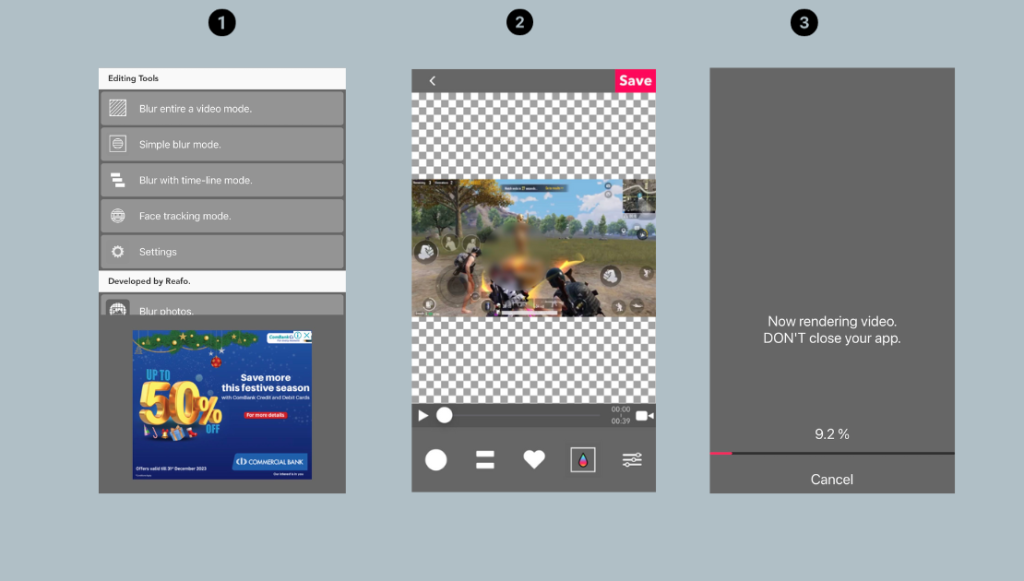
- Once you click on the face tracking blur mode, you can easily select and upload the video.
- After uploading the video, MovStash automatically recognizes the faces. Then, you can adjust the blur size, level, type, and inverse the area.
Conclusion
In terms of blurring face in video, selecting the right tool can significantly impact the final output of your video. CapCut, with its robust blurring effects and rich editing options, emerges as the best toolkit for blurring faces in videos.
FAQs
- What’s the best app to blur faces in videos?
- The best face-blurring app can vary based on your specific needs. CapCut’s web-based video editor, with its user-friendly interface and compelling face-blurring features, ensures privacy protection and a smooth editing experience.
- Try CapCut online video editor as your first choice to blur faces in your videos. Also, there are desktop apps and mobile apps from CapCut to support users’ needs across various operating systems.
OFFICIAL LINK >>> https://capcut-crack.pro/